Like a wide range of other educational institutions, Post University also uses Blackboard as software for distance learning. The Post University Blackboard login portal is easy both to access and to use. Our guide aims to walk you through the full Post Blackboard login steps, but also the process for other Post University logins.
For example, we will show you how to sign into the Post University WebReg. Moreover, we will go through the Post University One login process, also known as PostOne login. Even more so, our guide will show you how to view or pay your bills for your tuition. We have also included a section for login help, as well as one with contacts.
Post University Blackboard Login Instructions
For starters, we will explain the whole Post University login process. The platform is easily accessible through the Post University website. From there, all you need is your student email address and the password connected to your Blackboard account to sign in. To reach your Blackboard dashboard as a Post University student, this is what you have to do:
- Go to the Post University official website.
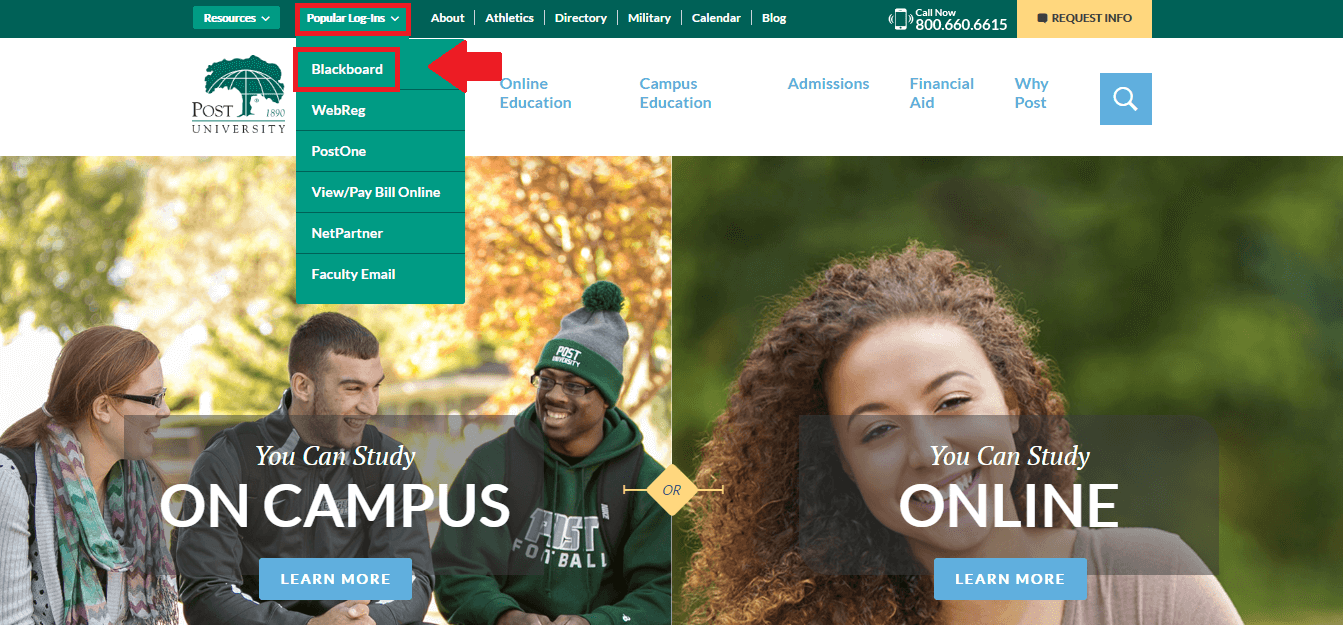
This is what the Post University Blackboard login button looks like.
- Hover over the Popular Log-Ins tab highlighted in the screenshot above.
- Select the first option from the list, Blackboard.
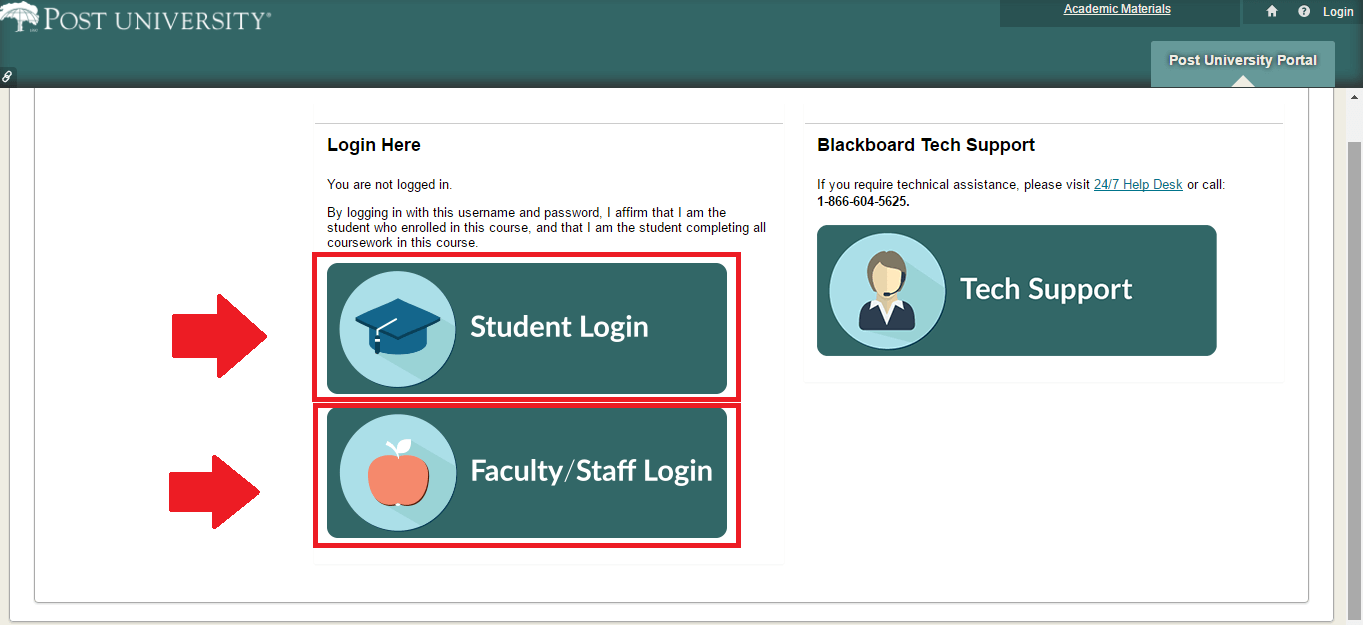
These are the two main options you have for the Post University Blackboard login portal.
- Choose the appropriate Post University Blackboard login page: Student Login or Faculty/Staff Login. Our example continues with Student Login.
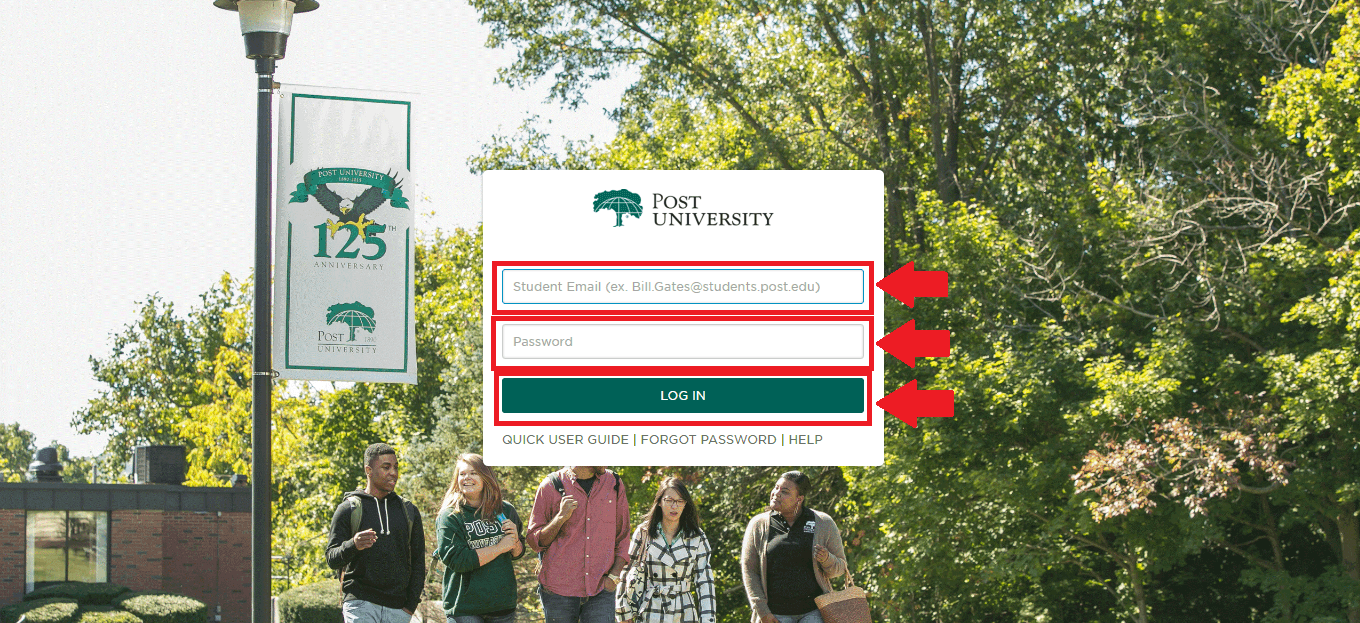
This image shows what fields you need to fill out in the Post University Blackboard login process.
- Type your Student Email address, respecting the format shown on the page.
- Enter the Password for your Blackboard account.
- Check to make sure that no typos slipped in your Post University Blackboard login details.
- Push the Log In button to access your dashboard.
WebReg Sign In Guidelines
Post University’s WebReg is short for Web Registration. Furthermore, the page is also known as the Campus Web. To put it shortly, it’s yet another user-friendly Post University login page for students. Here, you need a specific user name and password to sign in. Make sure you have them near and then proceed with these instructions:
- Visit the Post University home page.
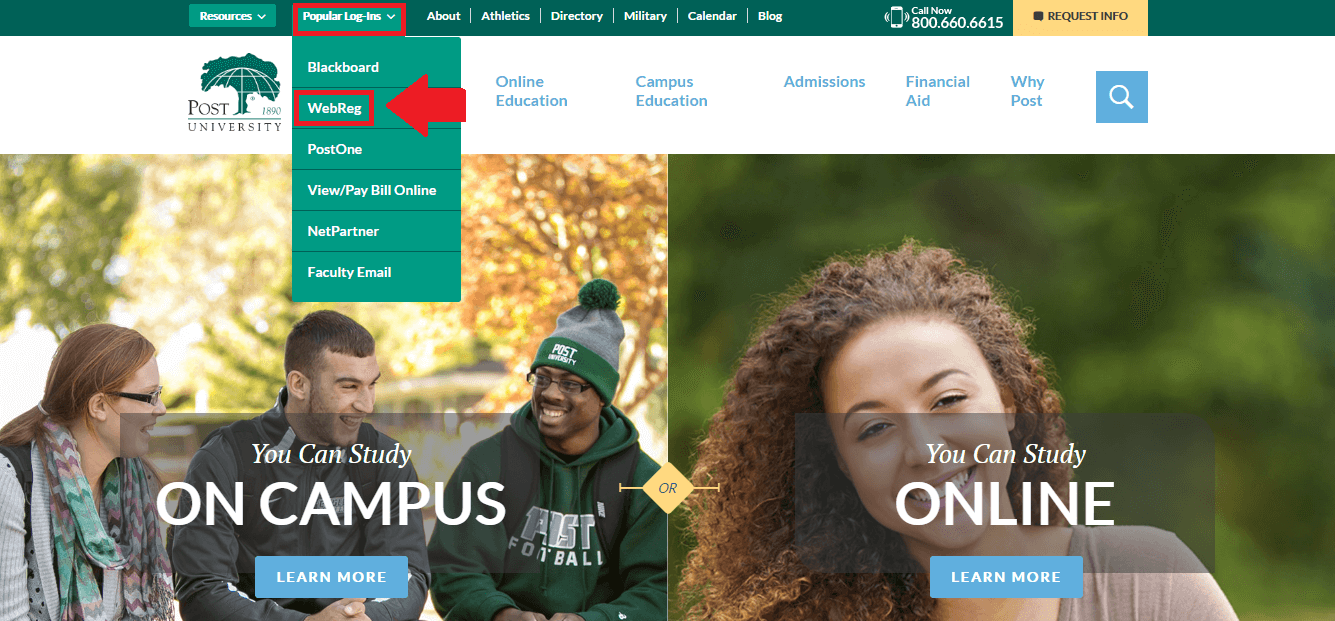
The red area shows what the WebReg button for Post University looks like.
- Click the Popular Log-Ins tab from the top left hand corner of the web page.
- Choose WebReg to get to the suitable login portal.
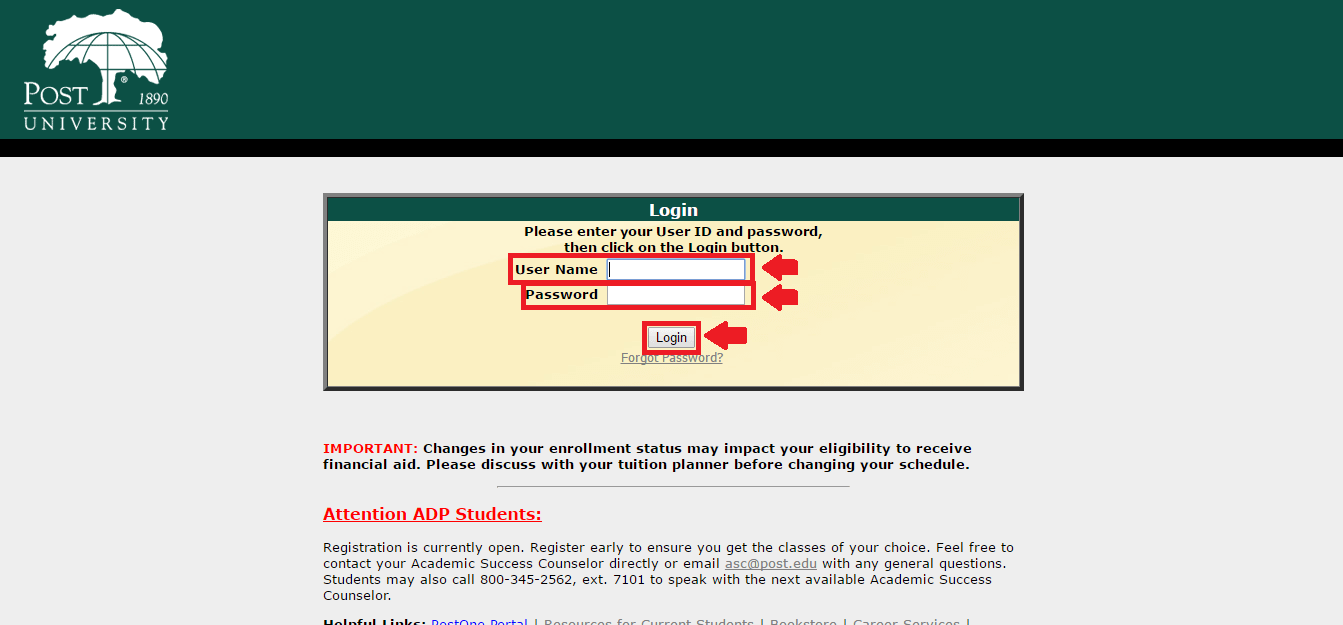
The WebReg login process looks like this screenshot.
- Enter your User Name in the designated field.
- Follow up with your Password in the box directly underneath.
- Click the grey Login button to finish.
Post One Login Steps
The Post One login process is quite similar to the Post University Blackboard login one. In other words, you basically follow the same steps, but choosing different buttons. Like with Blackboard, you need a student email address and a proper password to access your account. When you are prepared to access your Post One account, go through these instructions:
- Connect to the Post University home site.
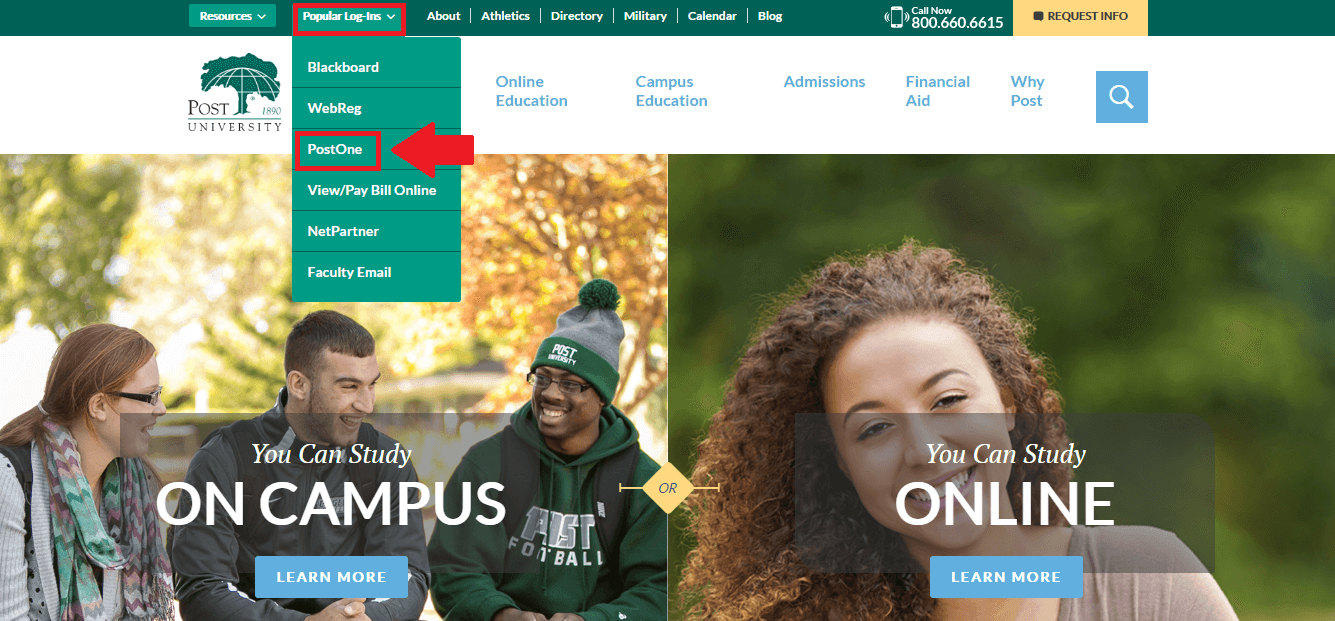
The PostOne button looks like the one outlined here.
- Place your mouse over the Popular Log-Ins button marked in red above, until a list of options drops down.
- Select the third option in the list, PostOne.
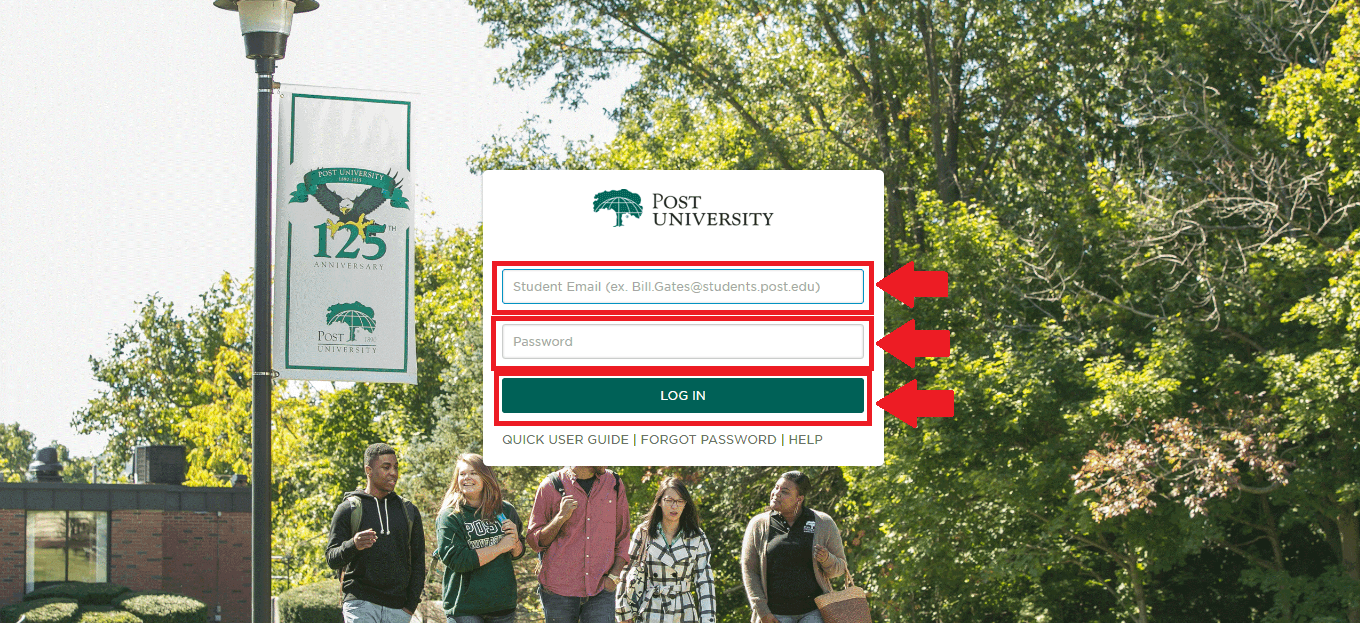
The Post University PostOne login process looks like this picture.
- Enter your compete Student Email address.
- Type your PostOne Password after that.
- Verify your login credentials for accuracy.
- Push the turquoise Log In button to access PostOne.
View/Pay Bill Login Walkthrough
One of the benefits of studying at Post University is that you can take care of your tuition online. In a nutshell, you can both view and pay your university bills, through a dedicated portal. The platform is safe for online transactions and requires an ID and password to access. In addition to this, both students and parents can make payments using the same portal. Follow these steps to gain access:
- Go to the Post University site.
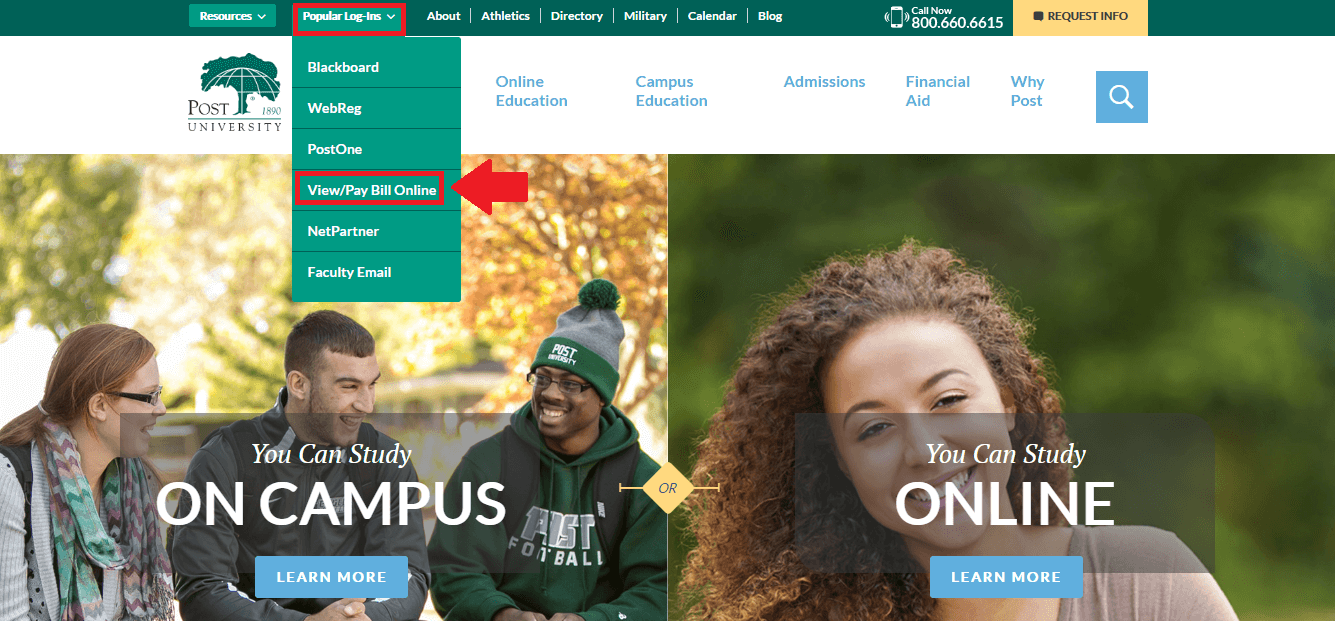
The button for the View or Pay Bill Online option looks like this one.
- Click Popular Log-Ins from your top left.
- Click View/Pay Bill Online, the fourth button in the drop down list.
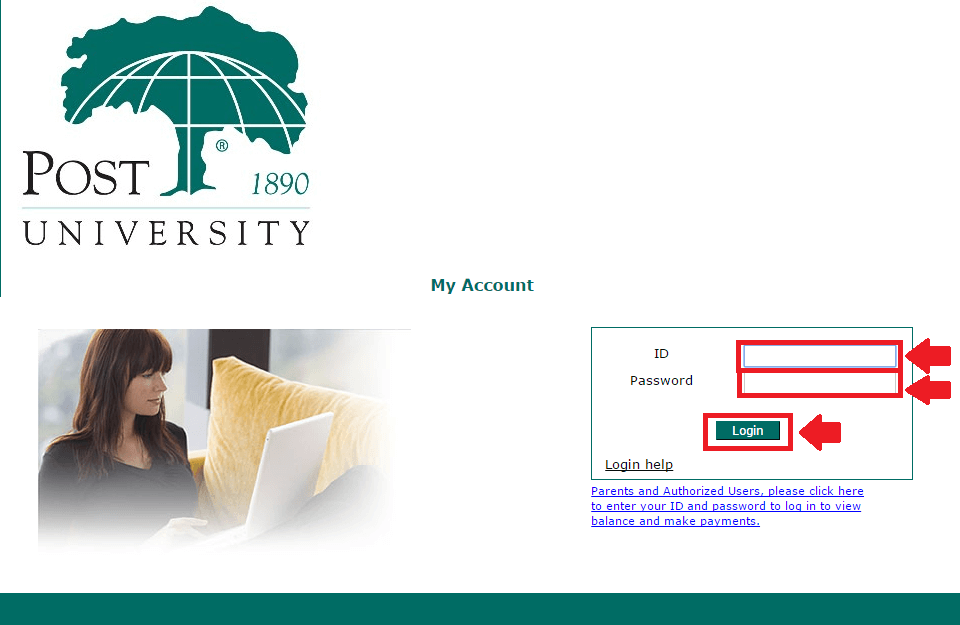
This screenshot shows what info you need to sign in and view or pay Post University bills.
- Enter your ID for viewing or paying bills in the field highlighted above.
- Continue with your Password in the second marked field, located right under the first.
- Re-read your info to ensure that it’s correct.
- Push the turquoise Login button.
- View the payments you have made or pay any bills for your tuition.
Post University Logins Help
Forgetting passwords happens to the best of us. The good news is that all of the Post University login portals we spoke about in this guide have options for regaining access. In most cases, there are options for resetting or recovering passwords. Additionally, you can contact tech support if you need any other assistance afterwards. Find the help you need below, under the heading you are interested in.
Post University Blackboard Login Assistance
- Go to the Post University Blackboard login page.
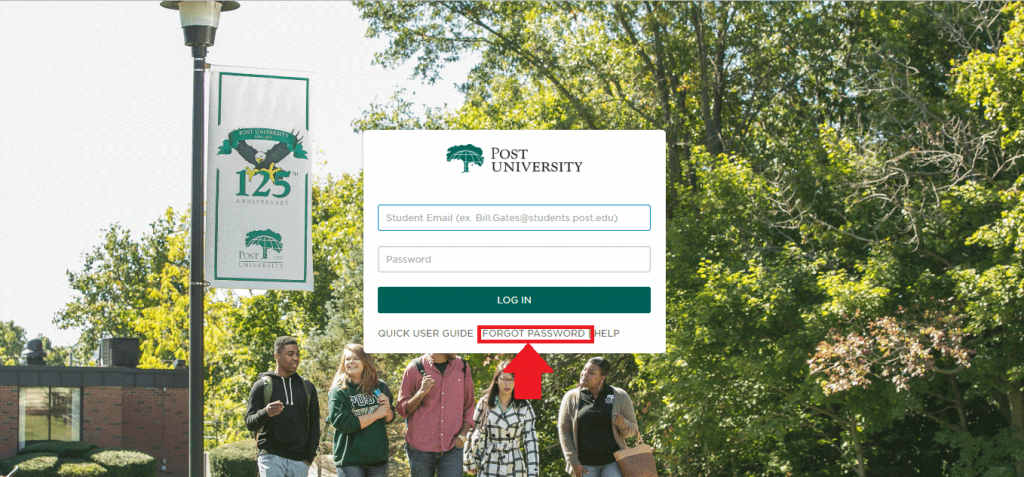
This is what the Forgot Password link for Post University Blackboard login looks like.
- Click the Forgot Password link, which can be found right under the Log In button.
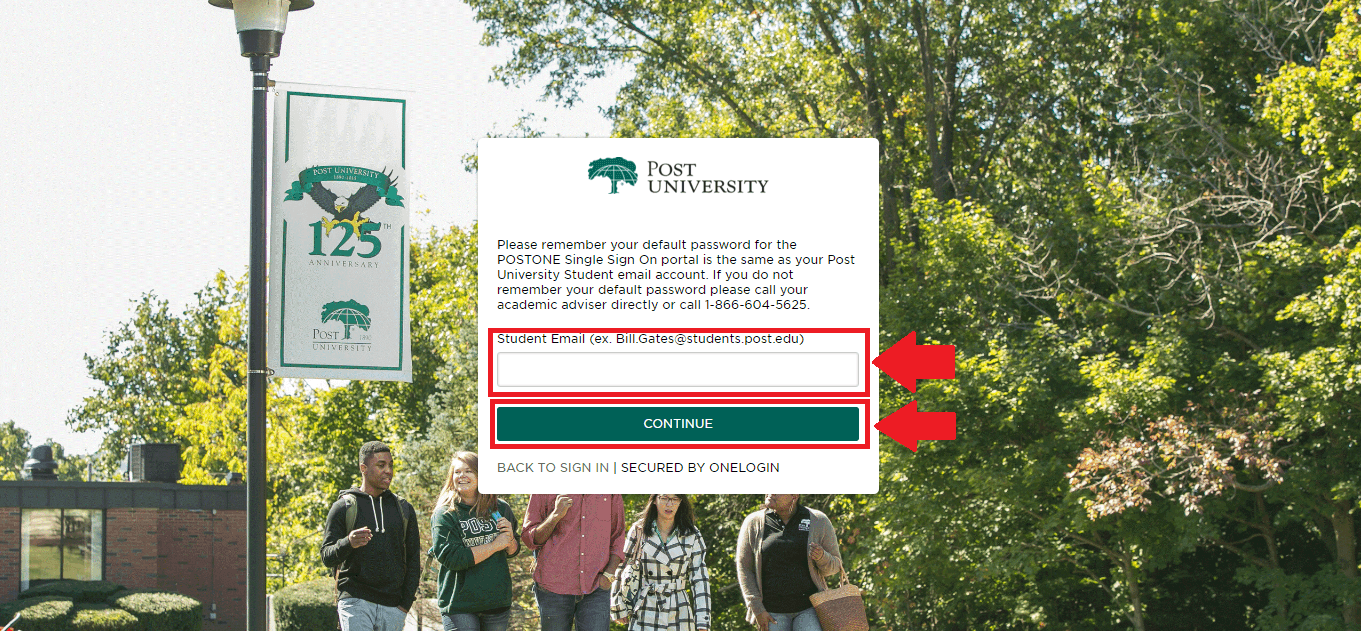
Your student email address is required to regain access on the Post University Blackboard login portal.
- Enter your Student Email address.
- Click Continue and follow any other steps.
- Call 1 866 604 5625 if you need any other help with your Post University Blackboard login.
WebReg Sign In Help
- Connect to the WebReg login site.
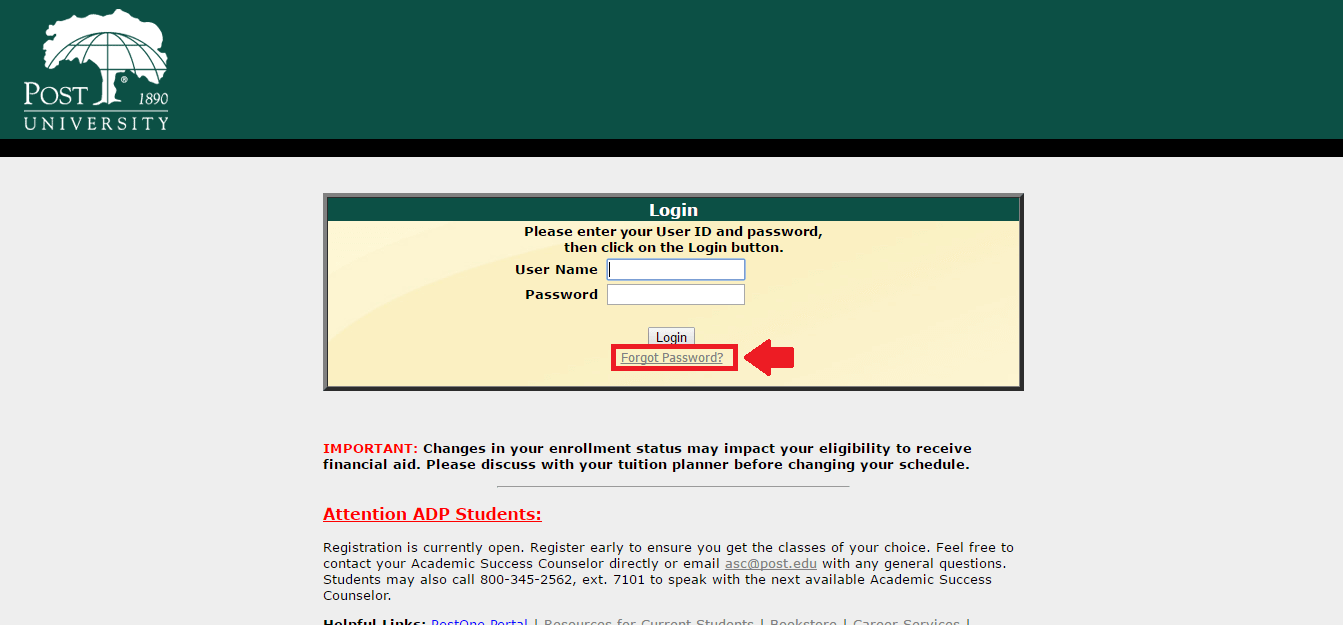
This is the link you need to select if you forget your WebReg password.
- Click the blue link that reads Forgot Password? from under the grey Login button.
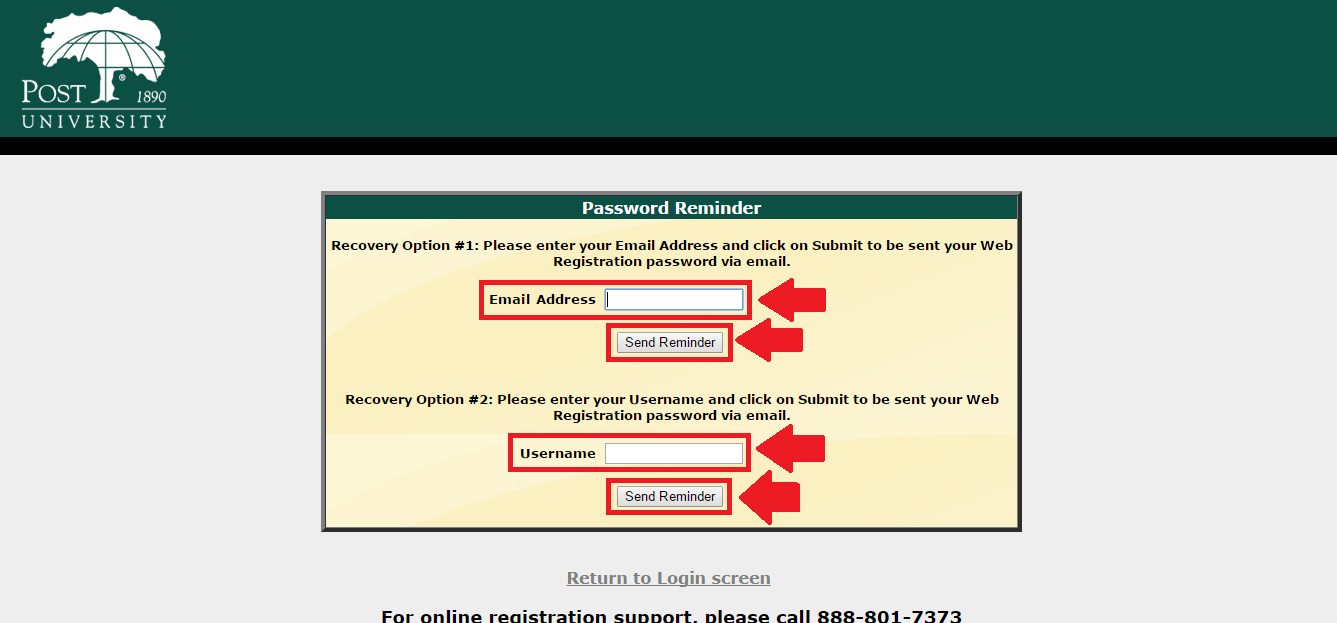
These are the two options you have if you forget your WebReg password.
- Choose the best recovery option for you: Email Address or Username.
- Enter your Email Address in the top field if you prefer the first recovery option.
- Type your Username in the bottom box for the second recovery solution.
- Click the grey Send Reminder button under the option you chose.
- Check your student email inbox to see what your WebReg password is.
PostOne Login Guidance
- Visit the PostOne login portal.
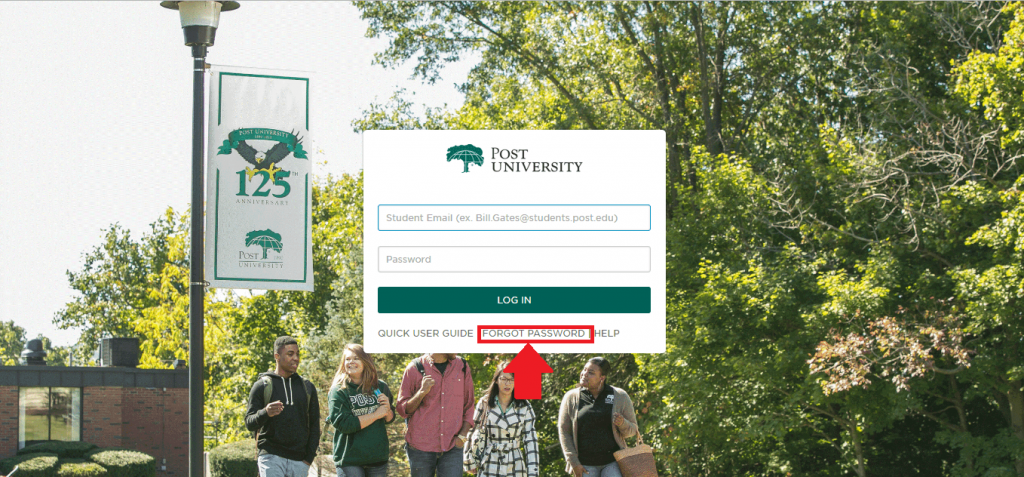
This is the Forgot Password link for PostOne login issues.
- Click Forgot Password?, the grey link from under Log In.
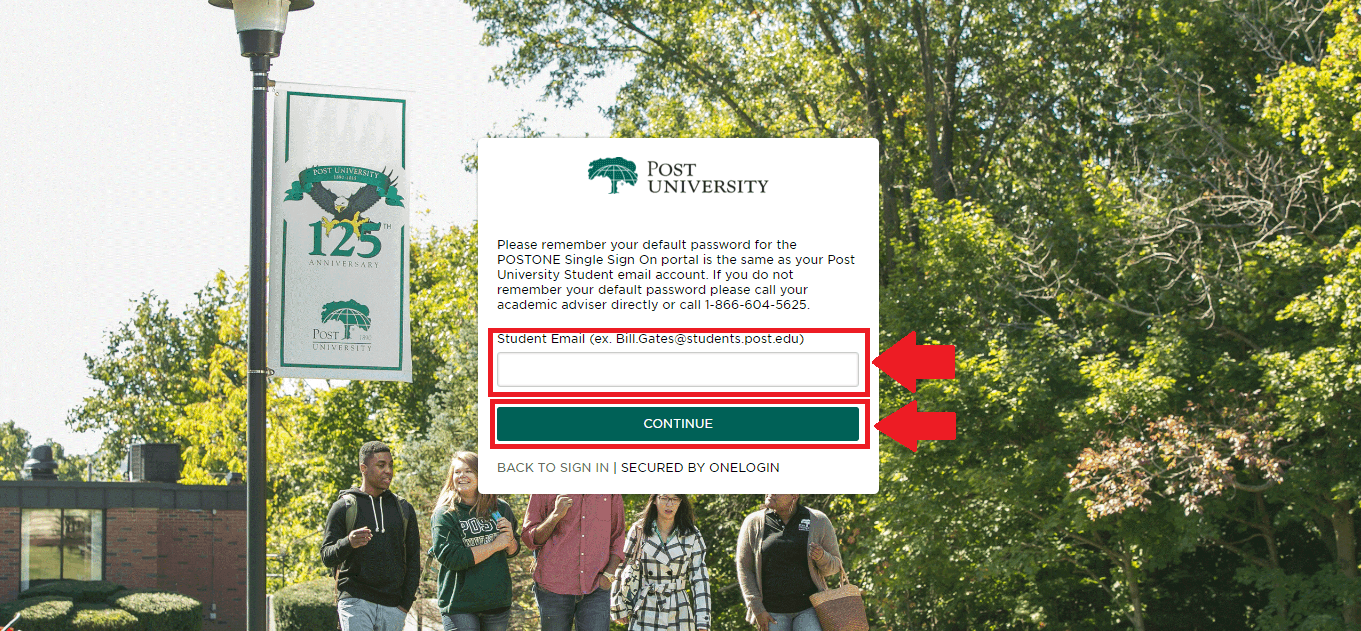
This is how you regain access to your PostOne account if you forgot your password.
- Type your Student Email in the empty field on your screen.
- Push the Continue button.
- Go through any other remaining steps to recover or reset your PostOne password.
View/Pay Bill Sign In Assistance
- Access the View / Pay Bill sign in page.
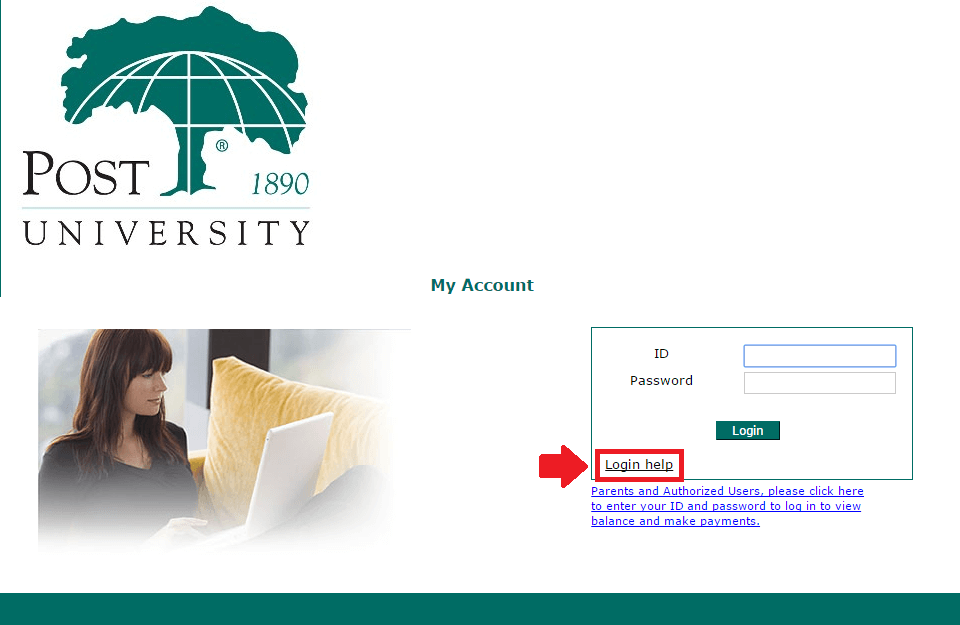
This is the link you have to click to get login help on this page.
- Click the Login Help link from the bottom left corner of the main login box.
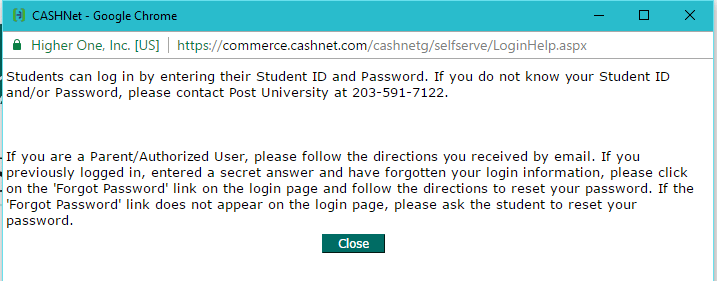
This page explains what you have to do if you need login help to view or pay your bill.
- Dial the number that appears in the pop up window for personal assistance – 203 591 7122.
Post University Address & Contacts
To conclude, we want to offer you some contacts from Post University that you might require at one point or another. There are numerous phone numbers and email addresses in the Post University directory, but we’ll outline some of the most popular ones below.
Blackboard Helpdesk – 866 604 5625
General Information – 800 345 2562
Online & Regional Site Students – 800 345 2562, ext. 2508 / asc@post.edu
Financial Literacy and Federal Student Loan Repayment Advisors – 203 591 7105 / postdefaultprevention@post.edu
Please consult the university directory for any other contacts you might need. Any other details about the university can be found on the Post University home page.
Leave a Reply